When storage is tight, a long list of tiny deletions can create work without solving the problem. Begin by finding where the space is used, then choose a category you can review safely.
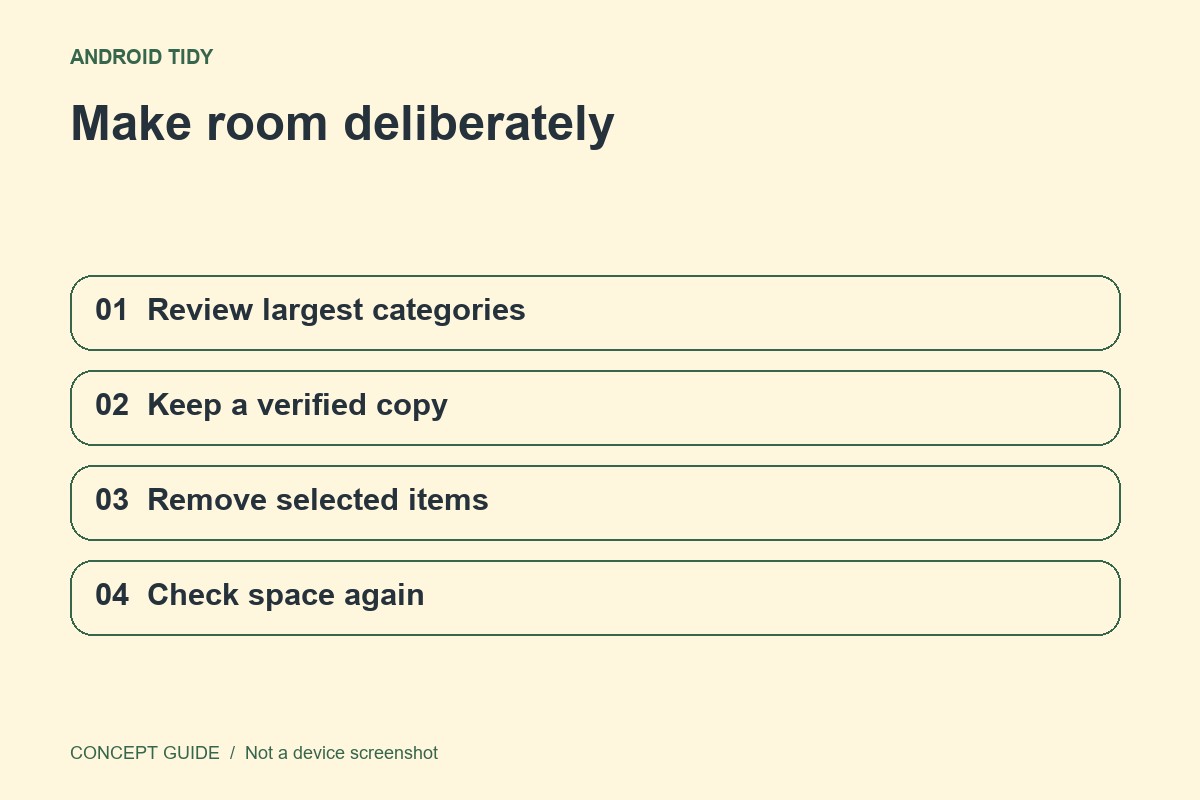
Read the storage breakdown
Open the phone's storage settings and note the largest categories. Storage is space for files and apps; it is different from working memory. A large category is a place to investigate, not an instruction to erase everything it contains. The controls and category names vary by manufacturer.
Choose material you can recognize
Downloads, offline videos and old exported files can be easier to assess than application data. Open unfamiliar files before deciding, and verify a separate copy of anything important. For media inside a service, use that app's download-management controls where available so its library stays consistent.
Protect the original until verified
If you copy files to a computer or cloud location, open a sample at the destination. Check that the newest expected items arrived. Deleting photos through a synced gallery may affect other devices, so distinguish a device-space cleanup feature from deleting items from the synchronized library.
Measure the useful outcome
Return to storage settings and compare the available space. Then repeat the task that was failing, such as saving a photo or updating an app. If space did not change as expected, inspect the app's bin or download controls rather than installing an unknown cleaner that requests broad access to your files.