Two neighboring Android controls can have very different consequences. Clearing a cache is not the same as removing an application's stored data, and neither should be a routine response to every slow moment.
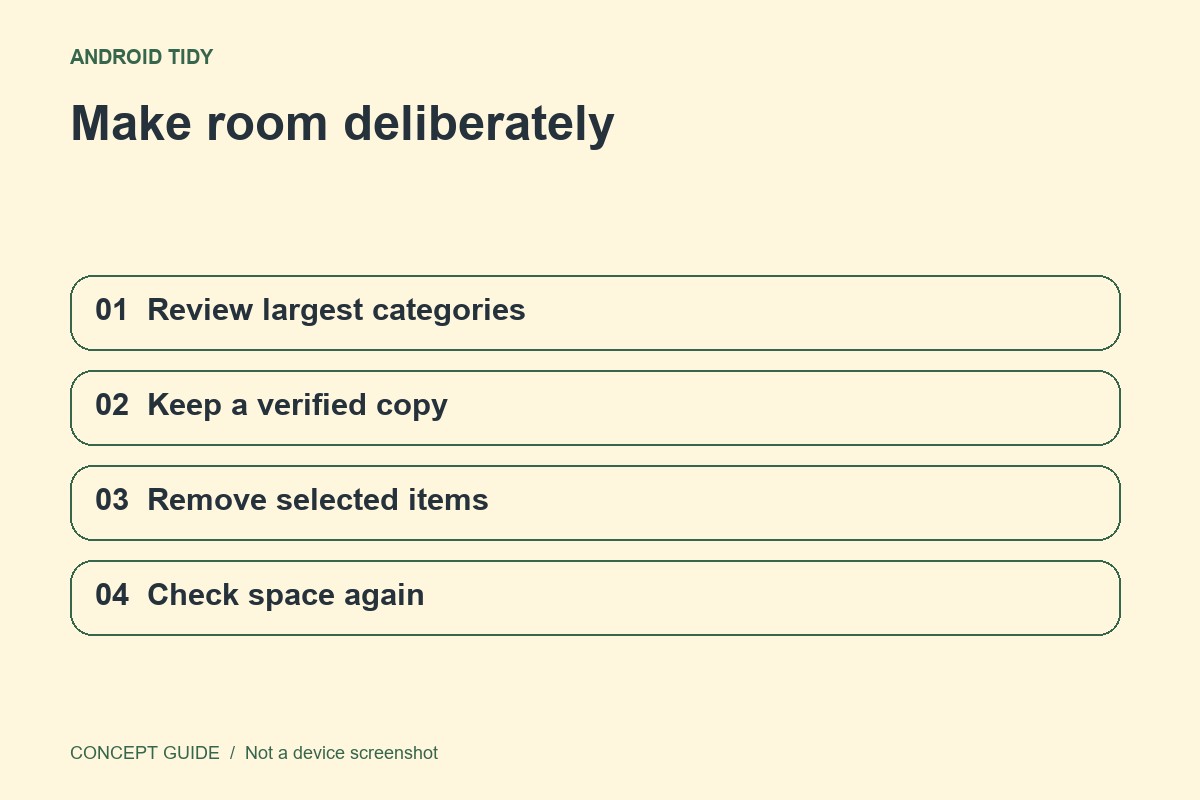
Identify the actual problem
Decide whether one app fails, storage is full or the whole phone feels slow. Start with a restart and relevant official update checks where appropriate. If the app works normally, clearing data just to keep a number small can create unnecessary sign-in and download work.
Understand the scope
Cache generally contains temporary material an app can rebuild. A clear-storage or clear-data action can remove local app information and reset the app's state. The exact consequences depend on the application. Read the warning and the app's support guidance before continuing.
Protect app-specific records
Check for unsynced notes, downloads, message history and other local material. A phone backup does not prove that all of those items can be restored. If you cannot establish how an important record is preserved, stop before clearing storage and ask the app developer.
Verify with the same task
After a supported cleanup step, repeat the task that was failing. An app may need to rebuild temporary files, so a first launch alone is not a complete assessment. If the problem persists, preserve the error and contact support instead of repeatedly erasing the app's state.